
How to Split PDF Pages Online for Free: A Step-by-Step Guide
Extract a few pages from a long PDF, save every page as its own file, or divide one document into two parts. The right choice is the output you need, not a generic “split” button.
The free PDF splitter saves the pages you name as one PDF or as individual PDFs in a ZIP. It reads the file in your browser. There is no account and no checkout. You can run it again as often as you need. Each PDF still has to be 50 MB or smaller, and one session holds at most 20 PDFs.
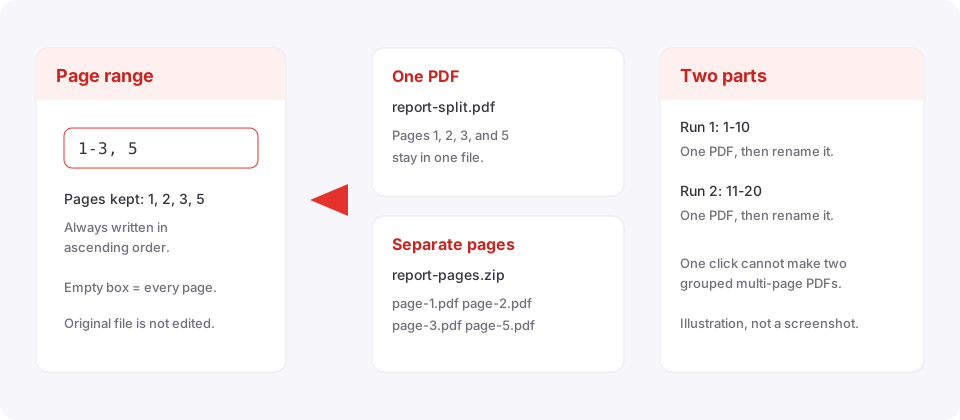
How to split PDF pages online for free
Step 1: Choose the result you need
Decide whether the selected pages should stay together or become separate files.
- One PDF with selected pages. Use this for a chapter, a report section, or a few contract pages.
- A separate PDF for each page. Use this for certificates, invoices, or forms. The pages download together in one ZIP.
Step 2: Select the original PDF locally
Open the free online PDF splitter and choose a PDF from your device. The tool accepts PDF files only, up to 50 MB each, and up to 20 files in one session. No account form appears.
Step 3: Enter a page range
Type the pages in the range field. Spaces around commas are fine. Repeated numbers count once. The splitter always writes pages in ascending order. The box selects pages. It does not rearrange them into the order you typed.
| What you type | Pages saved |
|---|---|
Empty | Every page |
1-3 | 1, 2, 3 |
1-3, 5 | 1, 2, 3, 5 |
5-1 | 1, 2, 3, 4, 5 |
2, 2, 4 | 2, 4 |
10-12, 2 | 2, 10, 11, 12 |
Step 4: Split and check the download
Choose One PDF or a separate PDF for each page, then select Split PDF. Starting from report.pdf, one PDF is named report-split.pdf. Separate pages download as report-pages.zip, with files such as page-3.pdf and page-7.pdf.
Open the download and check the page count, order, text, and images. The PDF you selected is not edited.
How to extract specific pages from a PDF
For pages 4, 9, and 15, enter 4, 9, 15 and choose One PDF. Those pages stay together, in ascending order. A mix of ranges and single pages works the same way: 1-3, 7, 10-12. A reversed range such as 5-1 selects the full span. Typing 8, 3, 1 saves pages 1, 3, and 8, not the order you typed.
Every selected page has to exist. If the PDF has eight pages and the range includes page 10, that file stops with an error that names the real page count.
One PDF or individual pages
| Goal | Output | Result |
|---|---|---|
| Send pages 8–12 of a report | One PDF | A five-page PDF |
| Extract only page 7 | One PDF | A one-page PDF |
| Give each certificate its own file | Separate PDF for each page | A ZIP of individual PDFs |
| Keep pages 2, 4, and 6 together | One PDF | One three-page PDF |
| Save pages 3–5 separately | Separate PDF for each page | page-3.pdf through page-5.pdf inside a ZIP |
Separate pages means one PDF per selected page, not several grouped multi-page PDFs. Grouped sections use the next method.
How to split a PDF into two parts
A 20-page file that should become pages 1–10 and pages 11–20 needs two runs. One operation cannot produce two grouped multi-page PDFs.
- Select the original, enter
1-10, choose One PDF, and download it. Rename itPart-1.pdf. - Select the original again, enter
11-20, choose One PDF, and download it. Rename itPart-2.pdf.
If you later need those parts in one file, use the free PDF merge tool.
Can you split multiple PDFs at once?
Yes, up to 20 PDFs, each 50 MB or smaller. Those are limits on one session and on each file. They are not a cap on how many times you can use the tool, and there is no paid tier that raises them.
Each file is processed on its own, but every file shares the same range box. If you enter 1-3, the tool tries to take pages 1–3 from each PDF. A two-page file then fails with an out-of-range error, even when the other files are long enough.
The page count on screen is for the first selected PDF only. When the documents have different lengths, or they need different ranges, split them one at a time.
Does splitting change quality or features?
For an ordinary PDF, the splitter copies the selected pages. Text stays selectable, and the split step does not recompress images.
The new PDF does not keep every feature of the original:
- Bookmarks
- Document information, including title and author
- Working interactive forms
- A valid digital signature
Keep the original when you need the signature or a working form. The extracted file is not a substitute for that signed record. A locked PDF can also follow an image-based path, described below.
The new file may be smaller, and it may not. Size depends on the content, not only on the page count. When a smaller file is the goal, use Compress PDF.
How to split a password-protected PDF
Select the locked PDF and enter the correct password when the page asks for it. The browser unlocks the file, then the splitter copies the pages you named. A wrong password shows Incorrect password. The tool cannot open a protected PDF when you do not know the password.
A normal unlock copies the page content. If that unlock cannot keep the source PDF structure, the tool redraws every page as a JPEG before splitting. The pages can still be readable, and the text is no longer selectable. Check the download when you need searchable text. If you already know the password and want a separate removal step, use the PDF password remover.
Common PDF splitting errors
A selected page is blank
A blank page fails that document. The message is Page N is blank. No file was saved. Use a range that leaves the blank page out.
The range goes past the last page
Processing stops for that file and reports how many pages it actually has. Enter only pages that exist.
The PDF is damaged or uses an unsupported filter
A damaged file, or a compression filter the reader cannot decode, produces no download. Open the original in a PDF reader and use a working copy.
The PDF is larger than 50 MB
The page refuses the file and names it. Make a smaller source document. Repeat uses stay free. The 50 MB limit applies to each selected file.
The password is wrong
The page shows Incorrect password. Enter the password that opens the file.
Is splitting a PDF private?
Splitting runs in the browser. The note on the tool page says selected PDFs are not uploaded, stored, or scanned on a conversion server. The original stays where you saved it, and the browser downloads a new PDF or ZIP.
There is no “deleted after one hour” promise, because the splitter does not store the PDF on a conversion server. Refreshing or closing the page can clear the temporary result, so download it before you leave. Read the local processing section of the privacy policy. Browser processing does not replace the care a confidential file needs.
What to check before you share the result
- Confirm the PDF or ZIP contains every page you meant to keep.
- Confirm the ascending order is the order you want.
- Check that text and images are readable.
- For a protected PDF, check whether the text is still selectable after the unlock step.
- Keep the original if bookmarks, forms, document info, or a valid signature matter.
- If a page is sideways, use Rotate PDF.
Common questions
Yes. You can use it again without a subscription, payment, account, or upgrade. Each file still has to be 50 MB or smaller, and each session accepts up to 20 PDFs.
Choose the output, then check the download
Use one PDF when the selected pages belong together. Use a ZIP when every page needs its own file. The range field accepts commas, spans, and an empty box for every page, and it always sorts pages from first to last. There is no account and no paid upgrade. The 50 MB and 20-file limits still apply.
Open the free online PDF splitter
Adobe describes a different desktop workflow in Extract pages in Acrobat. That page is about Acrobat, including options this splitter does not offer, such as deleting pages from the original file.