
Merge PDF Online Free: How to Combine Multiple PDF Files Into One
You can combine several PDF files into one document in the browser, without installing a PDF editor. That is useful for an assignment, a report, or an application packet that should arrive as a single file.
This guide covers the order of the files, locked PDFs, the optional password on the result, and the problems that stop a merge. The Merge PDF tool needs at least two PDFs. It accepts up to 20 files, 50 MB each, and downloads one file named merged.pdf.
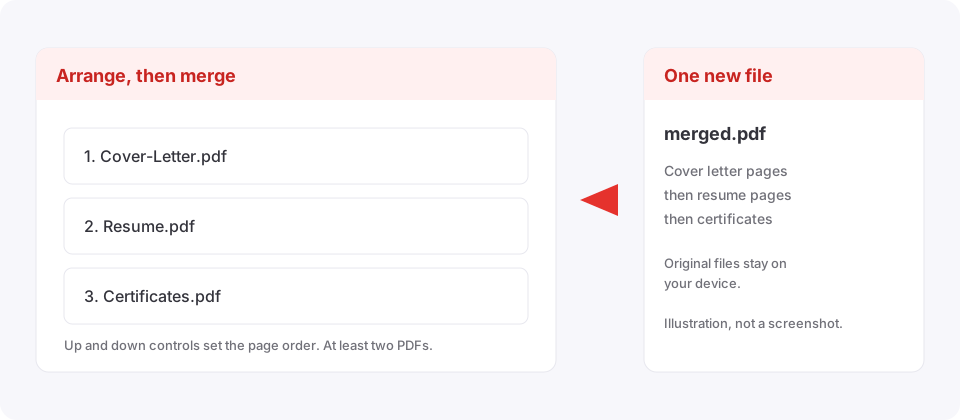
How to merge PDF files online for free
The files already need to be PDFs. The tool does not convert Word or image files during the merge.
Step 1: Open the merger
Go to the Merge PDF page. It runs in the browser, so there is no desktop app to install and no account to create.
Step 2: Select the PDF files
Choose the documents from your computer, phone, or tablet. A job application might be Resume.pdf, Cover-Letter.pdf, and Certificates.pdf. Each file can be up to 50 MB, and the session can hold 20 files. Leave out anything that should not appear in the final PDF.
Step 3: Arrange them
The merged PDF follows the list from top to bottom. For an application, put the cover letter first, the resume second, and the certificates last. Use the up and down controls beside each file. Checking the order now avoids a second merge.
Step 4: Handle locked files and the output password
A locked PDF shows a password field. Enter the password that opens that file and select Unlock. Only unlock a document you are allowed to open.
Under “Protect merged PDF,” choose one of three results:
- No password on the merged file.
- The same password, typed again, applied to the merged file.
- A new password, entered twice. The two entries have to match.
Step 5: Merge the files
Select Merge PDFs. The tool copies the pages into one PDF. A large or complex file takes longer, and the work uses memory on your device.
Step 6: Download and read merged.pdf
The download is named merged.pdf. You can rename it in the download field before you save it. Open it and confirm:
- Every document you selected is included.
- The pages are in the order you arranged.
- Text and images look right.
- Nothing important is missing.
- A password you set actually opens the file.
Why combine PDF files into one document
Easier sharing
One attachment is easier to send than five. The reader opens a single file and sees the pages in the order you chose. That helps with forms, reports, and application materials.
One place for related pages
An introduction, findings, and supporting pages that started as separate PDFs can live in one file for review.
Fewer missing attachments
Separate files are easy to forget. Combining them first lets you check the packet before you send it.
Can you merge PDFs without losing quality?
For an ordinary PDF, the merger copies existing pages. It does not turn those pages into images, and you do not paste text or take screenshots. Text, embedded images, and the page layout of each source page stay in the copy. Still open the result when a file has detailed graphics, unusual fonts, or scanned pages.
Different page sizes
You can combine an A4 file with a US Letter file. Each page can keep its own size. If a printer needs one size throughout, check the download before you print.
Forms and digital signatures
The new file is a fresh PDF. Bookmarks, document info such as title and author, a working form, and a valid digital signature from the originals are not carried over as a complete signed or fillable document. If a signature or an editable form has to survive, keep the original and check the download in a PDF reader before you rely on it.
A locked file is unlocked in the browser first. When that unlock can keep the PDF structure, the pages are copied. When it cannot, every page of that file is redrawn as a JPEG before the merge, and the text is no longer selectable. That path is the exception, not the normal merge.
Is it safe to merge PDF files online?
Some sites upload the documents. This merger reads the selected PDFs in the browser and does not send them to a conversion server. The privacy note on the tool page says files are not uploaded, stored, or scanned on a server. Read the privacy policy before you combine contracts, financial records, or other confidential files. Browser processing does not encrypt the contents or make them private by itself.
- Confirm you are on the site you meant to use.
- Do not send the download through a channel you do not trust.
- Leave out personal details the packet does not need.
- Keep the original files.
- Set a password on the merged file when the packet needs one.
How to merge password-protected PDF files
- Select the PDFs you want to combine.
- Enter the correct password for each locked file and unlock it.
- Arrange the documents.
- Choose whether
merged.pdfstays open or gets a password. - Select Merge PDFs and download the result.
If you do not know the password, ask the person who protected the file. The merger is not a way to open a PDF you are not allowed to read. The finished file can have different protection from the originals, so open it once before you share it. A wrong password shows Incorrect password.
How to merge PDF files on a phone
The same page works in a mobile browser when you already have the PDFs on the phone.
Android
- Open the browser and go to the merge page.
- Select the PDFs from the phone’s file picker.
- Arrange them with the up and down controls.
- Select Merge PDFs.
- Download the combined PDF.
iPhone
- Open Safari or another browser on the phone.
- Open the merge page.
- Select the documents from the file picker.
- Check the order.
- Merge the files and save the download.
On an iPhone, saved downloads are often in the Files app, depending on the browser. A computer is easier when the files are long, because you can inspect page order before and after the merge.
Why a PDF merge fails
A PDF is password-protected
Enter the password for that file and select Unlock, then merge again.
A file is larger than 50 MB
The page names the file and refuses it. Reduce that PDF first. Compress PDF redraws pages as JPEG images, so text in that compressed file is no longer selectable. Use it only when a smaller file matters more than selectable text.
More than 20 files
Merge them in batches of 20 or fewer, then merge those results, as long as each file is still within 50 MB. You also need at least two PDFs. One file cannot be merged with itself unless you add it twice.
A page is blank or the PDF is damaged
A blank page stops the merge with Page N is blank. No file was saved. Remove that page first, for example with the PDF splitter, by saving a range that skips it. If a file will not open in a PDF reader, replace it with a working copy before you merge.
The browser runs out of memory
Close other tabs, merge fewer files, or use a device with more free memory.
Tips for a clean merged PDF
Name the files before you combine them
Names such as 01-Cover-Letter.pdf, 02-Resume.pdf, and 03-Certificates.pdf make the intended order obvious in the list.
Remove pages you do not want
A merge copies what is already in each PDF. It does not drop outdated pages for you. Take those pages out first. A blank page will stop the job, so exclude it.
Check orientation and readability
Open each source file. Pages that are sideways, cropped, or hard to read stay that way after the merge.
Keep the originals
The tool creates merged.pdf and leaves the selected files where they are. Keep them so you can change the order or replace a section later.
Common questions
Yes. Select the PDFs, arrange them, choose Merge PDFs, and download merged.pdf. There is no desktop app and no account form.
Arrange the files, then read merged.pdf
Select the PDFs that belong in the packet, put them in order, unlock any file that asks for a password, and open the download before you send it. The originals are not replaced.
If you need to pull pages out of one file first, use the PDF splitter or read how to split PDF pages. Adobe’s desktop steps are in Combine files into one PDF. That article describes Acrobat, not this page.